
Speechify on Desktop: Convert Text to Audio and Boost Learning
Download Speechify App for Free Now
Install AppTurning text into clear, natural audio can change how you learn, work, and stay focused especially on days when your eyes are tired or your schedule is packed. A good text-to-speech tool lets you review study materials, catch up on articles, and proofread drafts by listening, which often reveals mistakes you would otherwise miss.
Below is a hands-on overview of how to get the most value from Speechify on a Windows computer, including setup tips, best-use scenarios, and a quick comparison table to help you choose the right approach for your routine.
What You Can Do with Speechify on a Windows Computer
- Convert PDFs, articles, and documents into audio for easier multitasking.
- Improve comprehension by replaying complex sections at a controlled pace.
- Support accessibility needs with consistent, fatigue-reducing listening sessions.
- Proofread writing by listening for awkward phrasing and missing words.
Listening is not a shortcut it’s a different way to process information, and for many people it’s the most consistent way to stay engaged during long reading sessions.
Core Benefits People Notice Quickly
Most users feel the biggest improvement in two areas: consistency and stamina. When you can listen while organizing files, walking around the room, or doing light tasks, you’re more likely to finish the content instead of postponing it. Another common win is retention: hearing the flow of a text can make key points feel more connected, especially for structured materials like lectures, essays, and reports.
Recommended Everyday Use Cases
- Studying: Listen to lecture notes, articles, or textbooks while taking short breaks to summarize what you heard.
- Work: Review long documents, policy updates, or research briefs in audio to reduce screen fatigue.
- Writing: Play drafts aloud to catch repetition, unclear transitions, and punctuation issues.
- Language practice: Pair listening with reading to train pronunciation patterns and pacing.
Quick Setup and Comfort Tips
To make the experience smoother, start with a comfortable speaking pace and adjust gradually. Many people jump to high speeds too quickly, then feel frustrated building up in small steps is more sustainable. If you’re listening for comprehension, use a slightly slower speed and pause briefly after dense paragraphs to recap the main idea.
- Use headphones in shared spaces to keep audio clear and private.
- Choose a steady pace for deep reading, and a faster pace for skimming familiar topics.
- Break long sessions into 15–25 minute blocks to reduce mental drift.
- Keep a simple note template: “Key idea → evidence → takeaway.”
How It Fits into Real Workflows
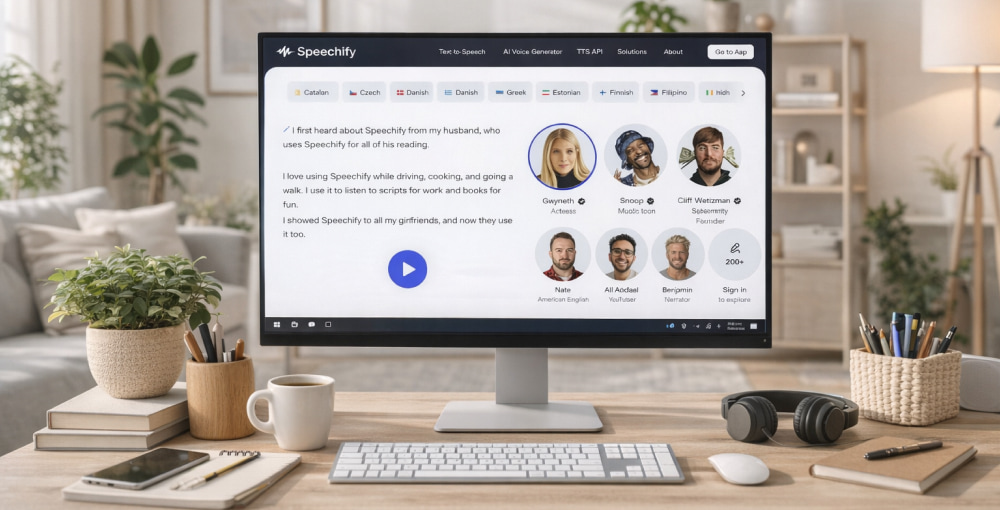
For readers who prefer listening to long articles, the Speechify desktop app can turn documents into natural audio while you work. When you’re switching between tabs all day, Speechify on desktop helps you keep studying without staring at the screen nonstop. If you’re setting up a new machine, you can safely download Speechify for PC from the official site and finish in minutes.
In many offices, the Speechify app on desktop fits neatly into a workflow that includes PDFs, web pages, and notes. To stay productive during commutes or chores, you can still use Speechify on desktop with headphones and quick keyboard controls. After you update Windows, it’s wise to install Speechify app on PC again only if a reinstall is actually needed.
A Simple Comparison Table for Common Scenarios
| Scenario | Best Listening Approach | Small Tip That Helps |
|---|---|---|
| Reading dense PDFs | Moderate speed with frequent pauses | Write a one-line summary after each section |
| Proofreading writing | Slightly slower than normal | Mark “clunky” sentences while listening, then rewrite |
| Learning new material | Steady speed, replay difficult parts | Use a short recap: “What was the point?” |
| Catching up on articles | Faster speed for familiar topics | Save key links to revisit later if needed |
Troubleshooting and Practical Fixes
If audio sounds too fast or robotic, reduce speed slightly and test a different voice option. If you notice mispronounced names or technical terms, try adjusting punctuation in the source text or adding spacing around abbreviations. For documents that feel “jumpy,” break the content into smaller chunks before listening so navigation stays simple.
- Audio is too quiet: Check Windows volume mixer and the app’s internal volume.
- Distracting pacing: Lower the speed and increase it step-by-step over a few days.
- Losing your place: Use short listening segments and keep a small checklist of what you’ve completed.
- Long sessions feel tiring: Switch to 20-minute blocks and stand up between them.
Best Practices for Long-Term Results
The most reliable way to benefit from text-to-speech is to make it part of a routine rather than a one-off tool. Choose one daily activity like reviewing notes, reading a newsletter, or proofreading a page and do it consistently for a week. Once it feels natural, add a second use case. This gradual approach builds momentum without turning the tool into “another thing to manage.”
Used thoughtfully, text-to-speech becomes a practical advantage: less eye strain, fewer unfinished reads, and a smoother path from information to action.